Add a meal
Search, favorites, “same as yesterday”, photo, barcode, description or quick add: pick whatever is easiest for you.
Open the add screen
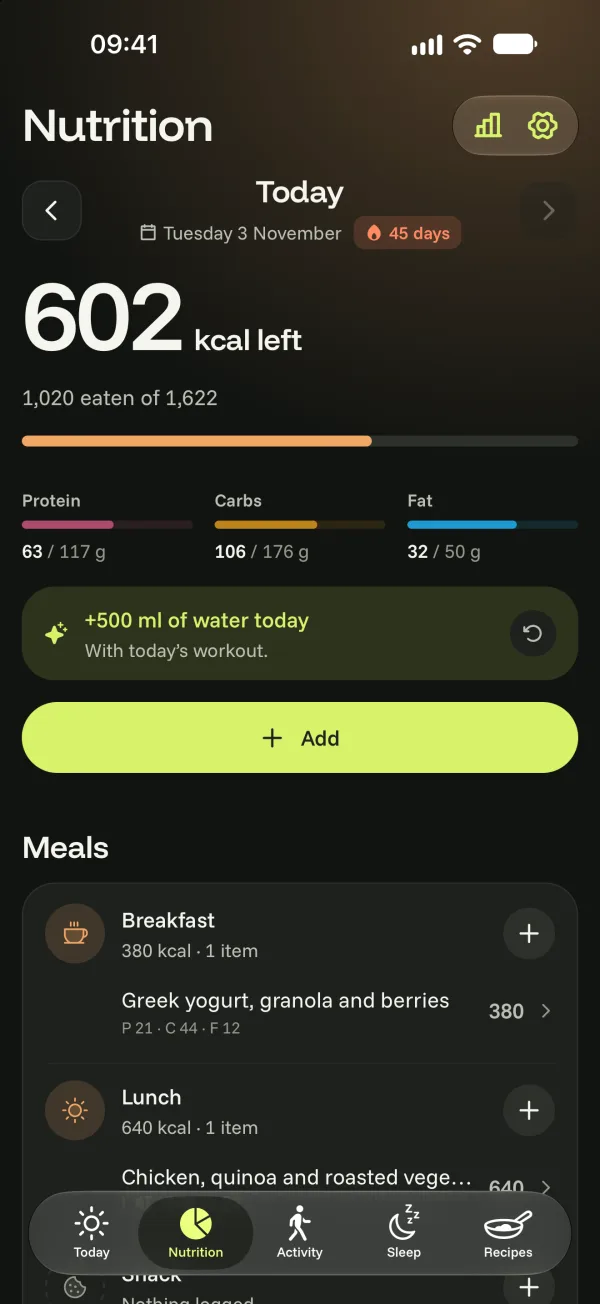
- In the Nutrition tab, tap Add, or the + next to a meal (breakfast, lunch, dinner, snack).
- On the Today screen, tap the meal suggested under To do, or Meal in the quick actions.
Bogeton picks the meal based on the time. To switch, tap Change at the bottom of the screen.
Ways to add
- Search: type a food, a dish or a recipe. Results mix basic foods (values per 100 g), products and CookinBreak recipes. Choose the amount, then add.
- Favorites and Recent: in one tap. To keep a food as a favorite, tap Add to my favorites on its card.
- Same as yesterday: copies a whole meal from the day before.
- Photo: Bogeton AI recognizes your plate. See Take a photo of your meal.
- Barcode: for packaged products. See Scan a barcode.
- Describe: write what you ate (“a plate of carbonara and a glass of orange juice”) and tap Analyze with Bogeton AI.
- Quick add: if you already know the calories, or only the macros (calories are worked out for you).
Edit or delete a food
Tap the food in your meal: you can change the amount, move it to another meal, Save it or Delete it.